Where Did the Styles Tab Go in Canva?
If you've been hunting around the left sidebar for Canva's Styles tab and coming up empty, you're not imagining things — it moved. Canva's editor redesign shifted Styles out of the Templates section and into a new home, and it's tripped up a lot of users. Here's exactly where to find it.
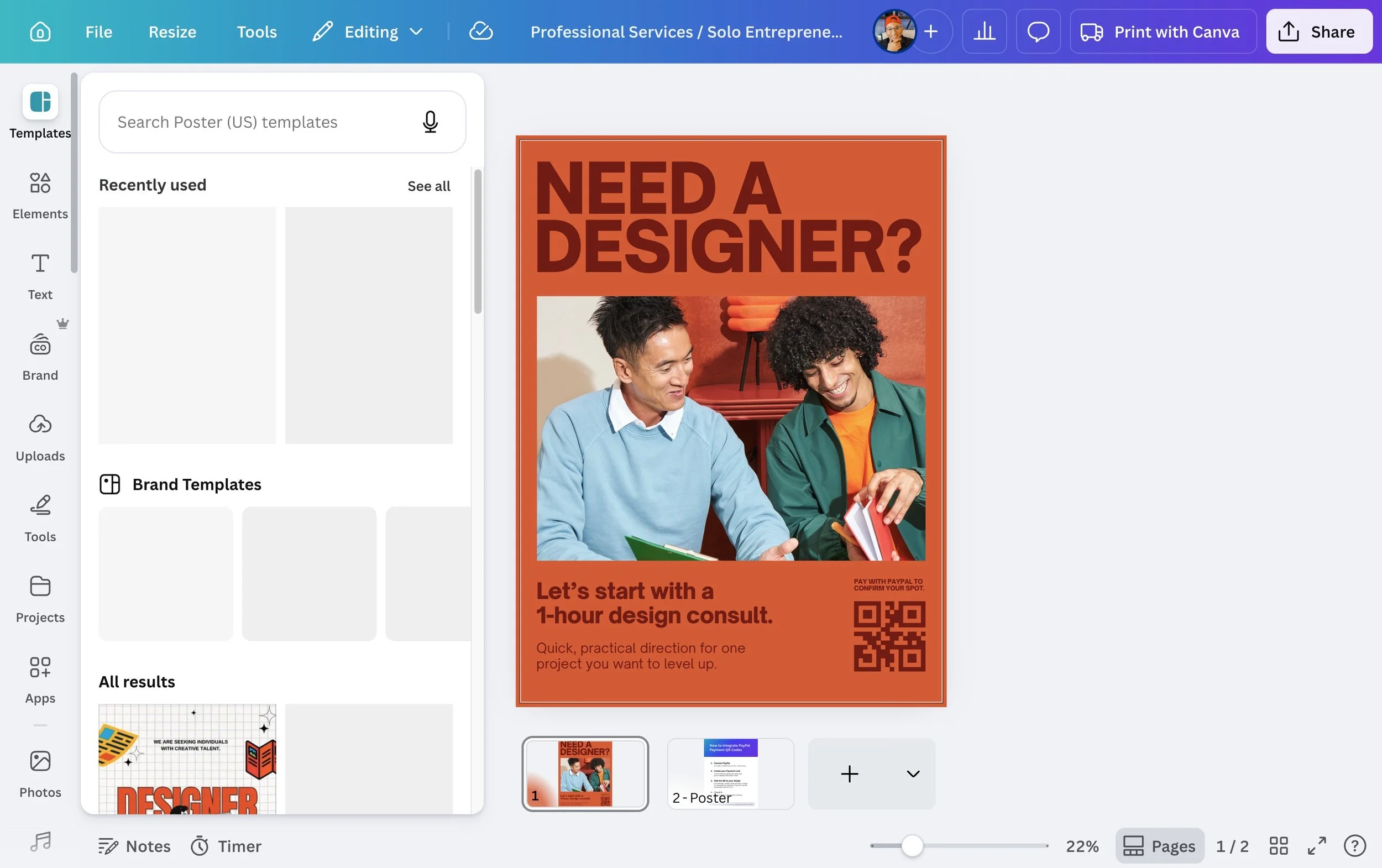
The Short Answer
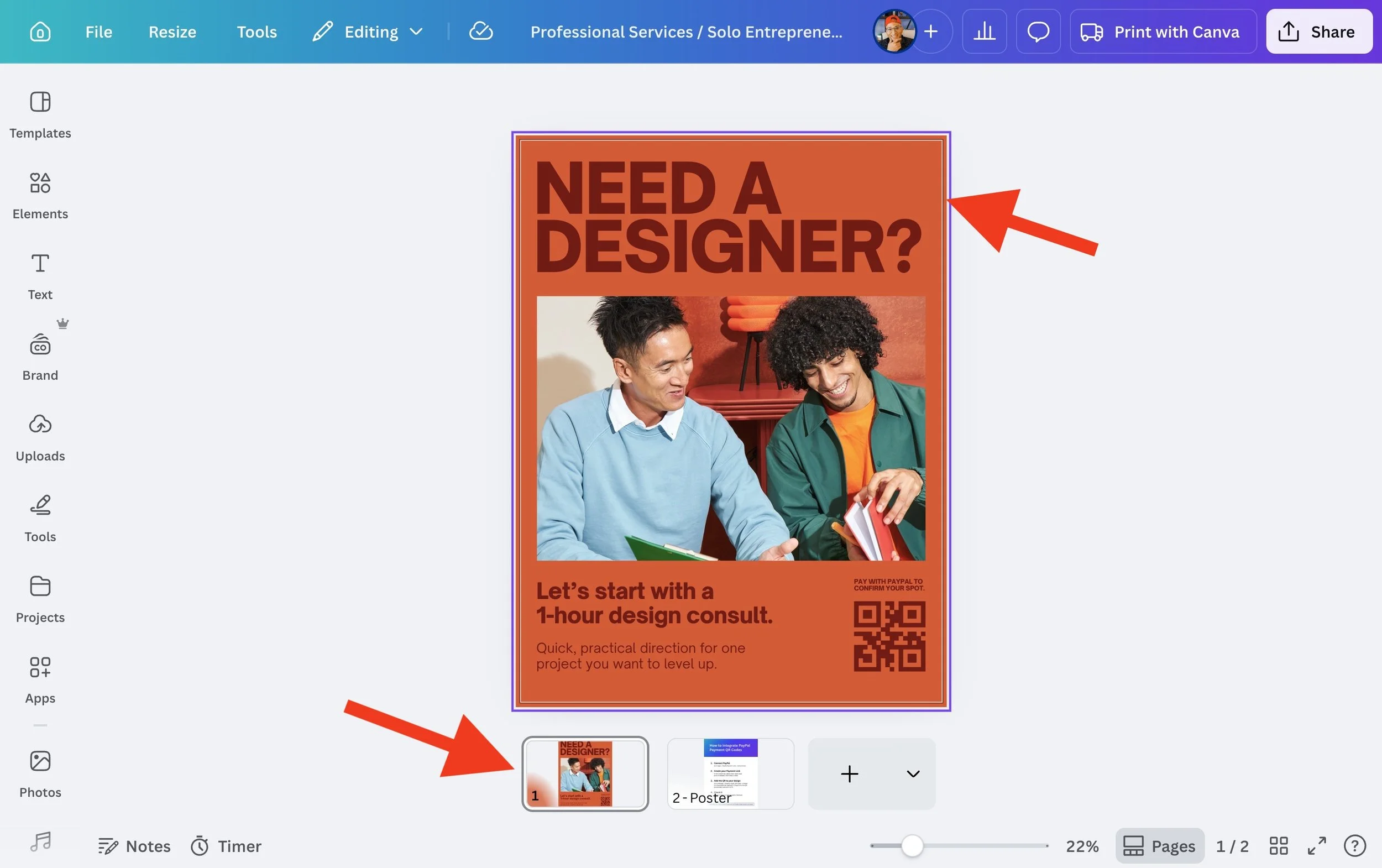
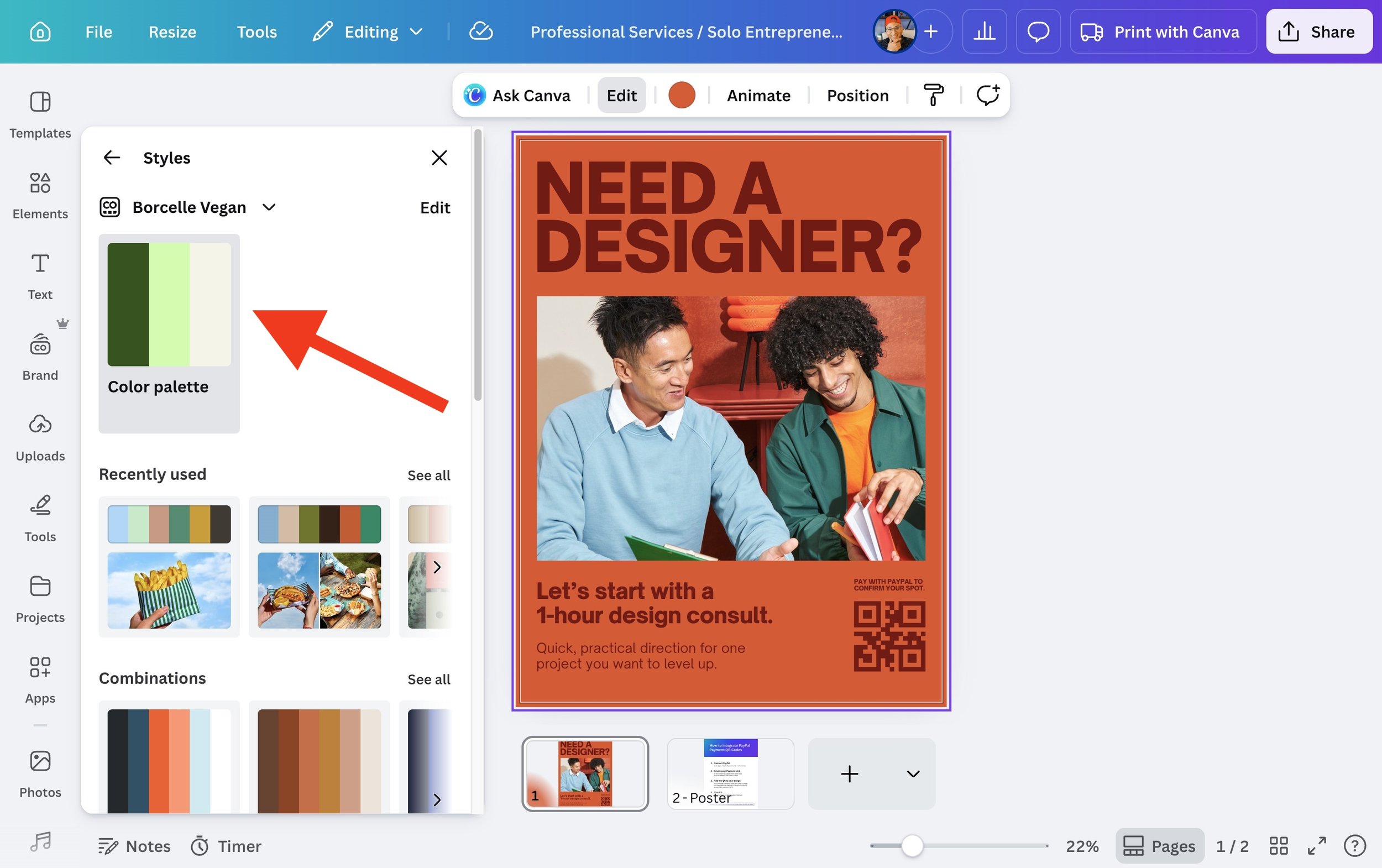
Styles is now accessed through the Edit Page panel, not the left sidebar. To get there, click on your page background (or the thumbnail below your design), then click Edit in the floating toolbar that appears. That opens the Edit Page panel, where you'll find Styles waiting for you.
Step-by-Step
Step 1: Click on your page background Click anywhere on your canvas where there's no element, or click the page thumbnail at the bottom of the editor. This selects the page itself rather than anything on it.
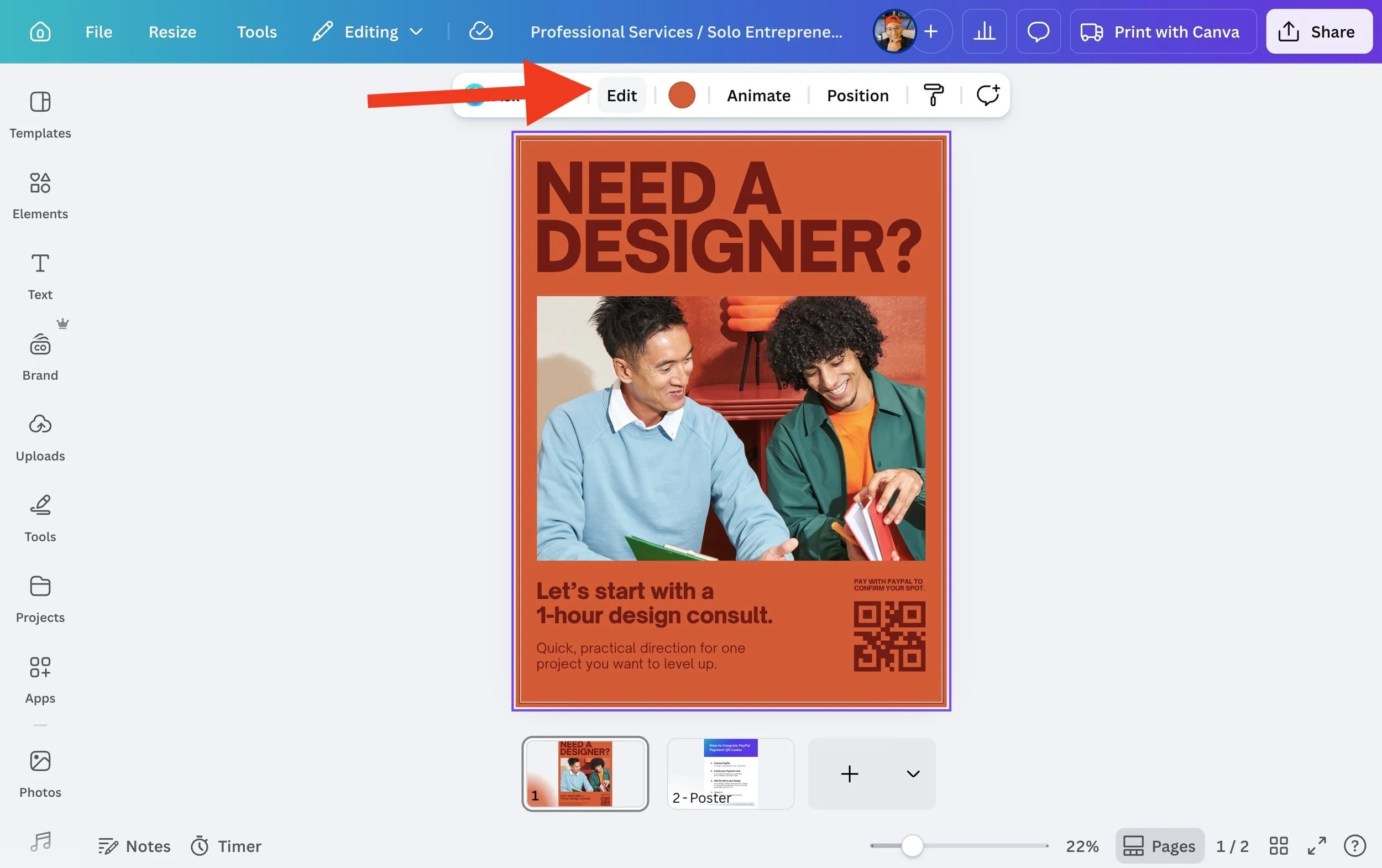
Step 2: Click "Edit" A floating toolbar will appear near the top of your canvas with options like Ask Canva, Edit, Animate, and Position. Click Edit.
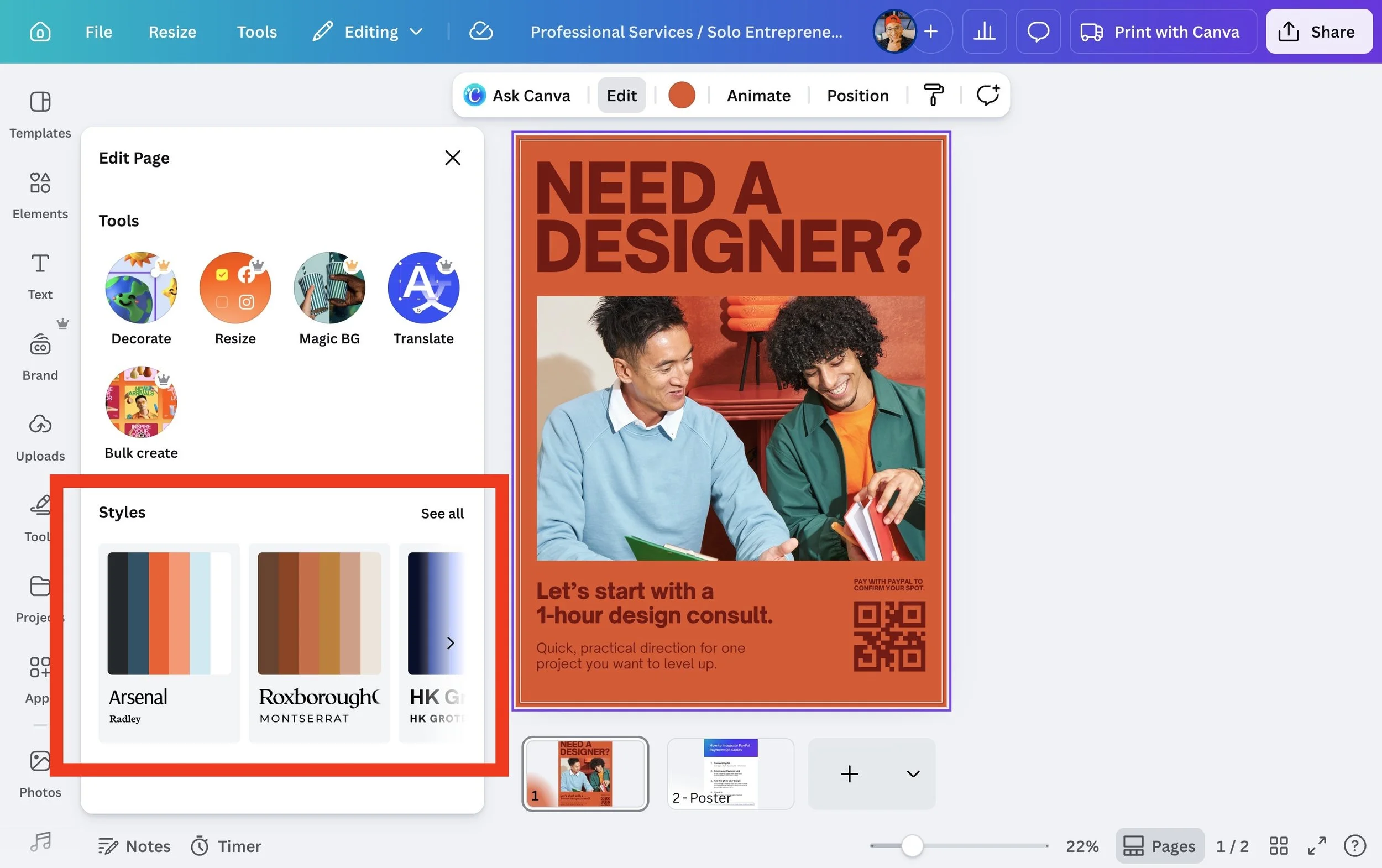
Step 3: Find Styles in the Edit Page panel The Edit Page panel will open on the left. Scroll down and you'll see a Styles section with a "See all" link.
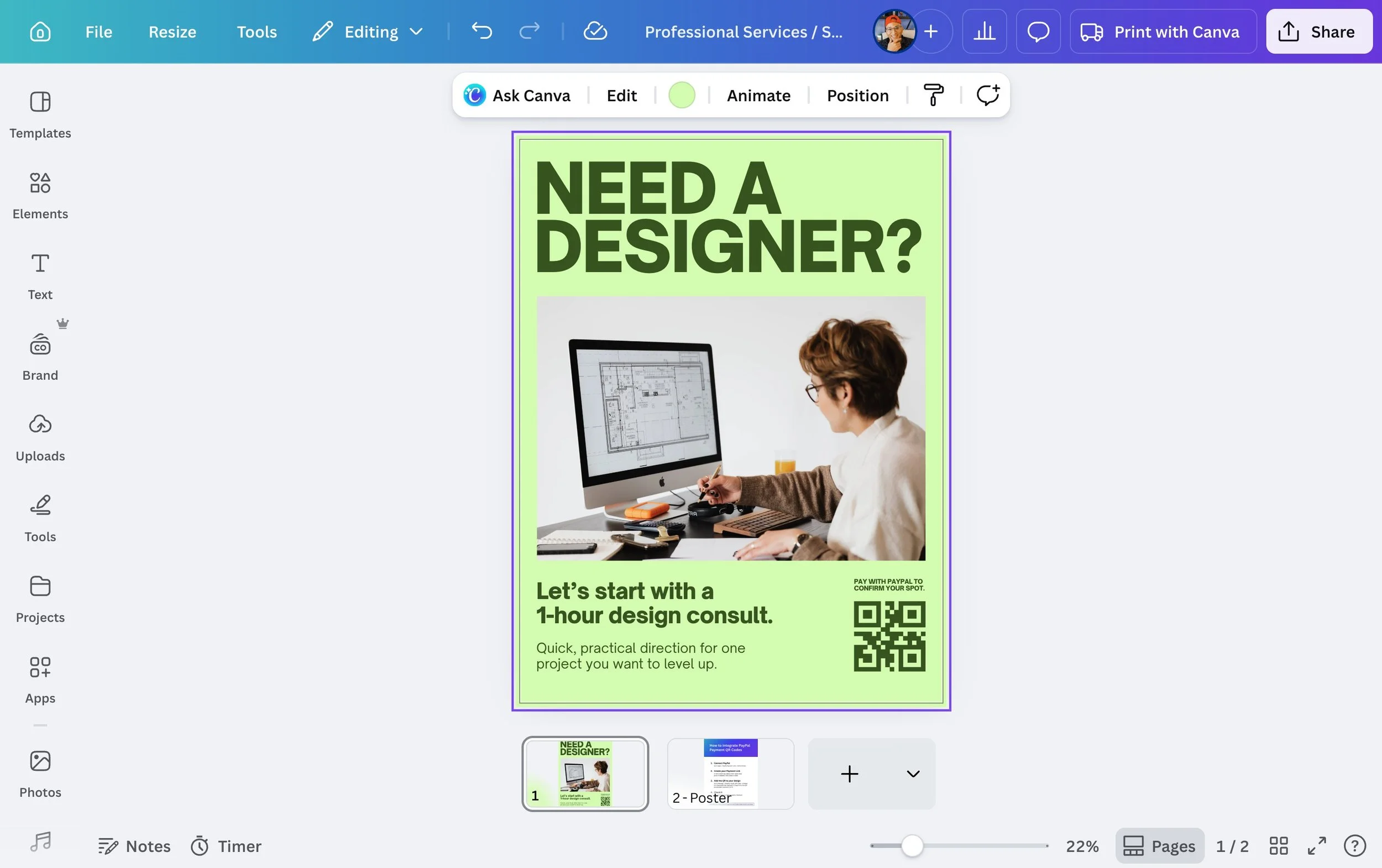
Step 4: Click "See all" and choose your style This opens the full Styles panel, where you can browse color palettes, font combinations, and recently used styles. Click any option to apply it to your design. You can also select Apply to all pages to update your entire project at once.
What Does Style Do?
If you haven't used the Styles panel before, it's worth getting to know. It lets you instantly swap the color palette and font combination across your whole design in one click. Canva offers a library of curated pairings, and if you have a Brand Kit set up, your brand's colors and fonts will show up there too.
It's one of the fastest ways to explore different looks for a design — especially handy when you're creating multiple versions of the same graphic for different clients, campaigns, or seasons.
Want More?
Want to unlock even more features like the Brand Kit, background remover, and premium templates? Try Canva Pro free for 30 days here. It's well worth it for anyone creating content regularly.
And if you want more Canva tips like this, come find me on Instagram where I share quick, practical design help all the time.