How to Design a Beautiful Email in Canva and Send It to Flodesk (Step-by-Step)
When I started my business back in 2020, I also started my email list. Spent years building it. My automations, my segments, my checkout pages, my deliverability. Years of work. So the thought of ever switching to a new email provider was just too painful. Nobody wants to rebuild all of that from scratch.
But Flodesk kept showing up. It was kind of like when you're young and you have a crush on someone so you keep eyeing them. Checking them out.
Every time I turned around, they were dropping a new feature or partnering with a brand I already used and loved. Canva (obviously). ManyChat. The list kept growing. So I spent months asking them hard questions. They answered every single one. They had resources to help me connect my domain, warm up my list, protect my open rates.
They checked every box.
So I went all in. Moved everything over. And this Canva integration? It's just one more reason I don't regret it. In a minute, I'll show you how it works.
What Is the Canva + Flodesk Integration?
Over the last year, Canva has added loads of new features to the platform. This integration with Flodesk lets you design a full email inside Canva using their email templates and then push it directly into Flodesk with just a few clicks. No exporting. No uploading files. No reformatting. You design it in Canva, share it to Flodesk, and you're ready to send.
Flodesk is actually one of only five exclusive email export partners Canva has selected for this direct integration. That's not nothing.
And if you want to make edits after the fact? You can go right back into Canva from inside the Flodesk editor and sync your changes back in one click.
It's smooth like butterrrrrr.
One thing to know upfront: this integration works for campaign emails only. It's not supported for workflow emails at this time. So if you're building an automated email sequence, you'll want to use Flodesk's native editor for those. But for campaigns, whether you're sending immediately or scheduling for later, this workflow is fire.
What You'll Need
A Canva account
A Flodesk account (free trial available)
Bonus: Your brand fonts, colors, and any images you want to use
Step 1: Find an Email Template in Canva
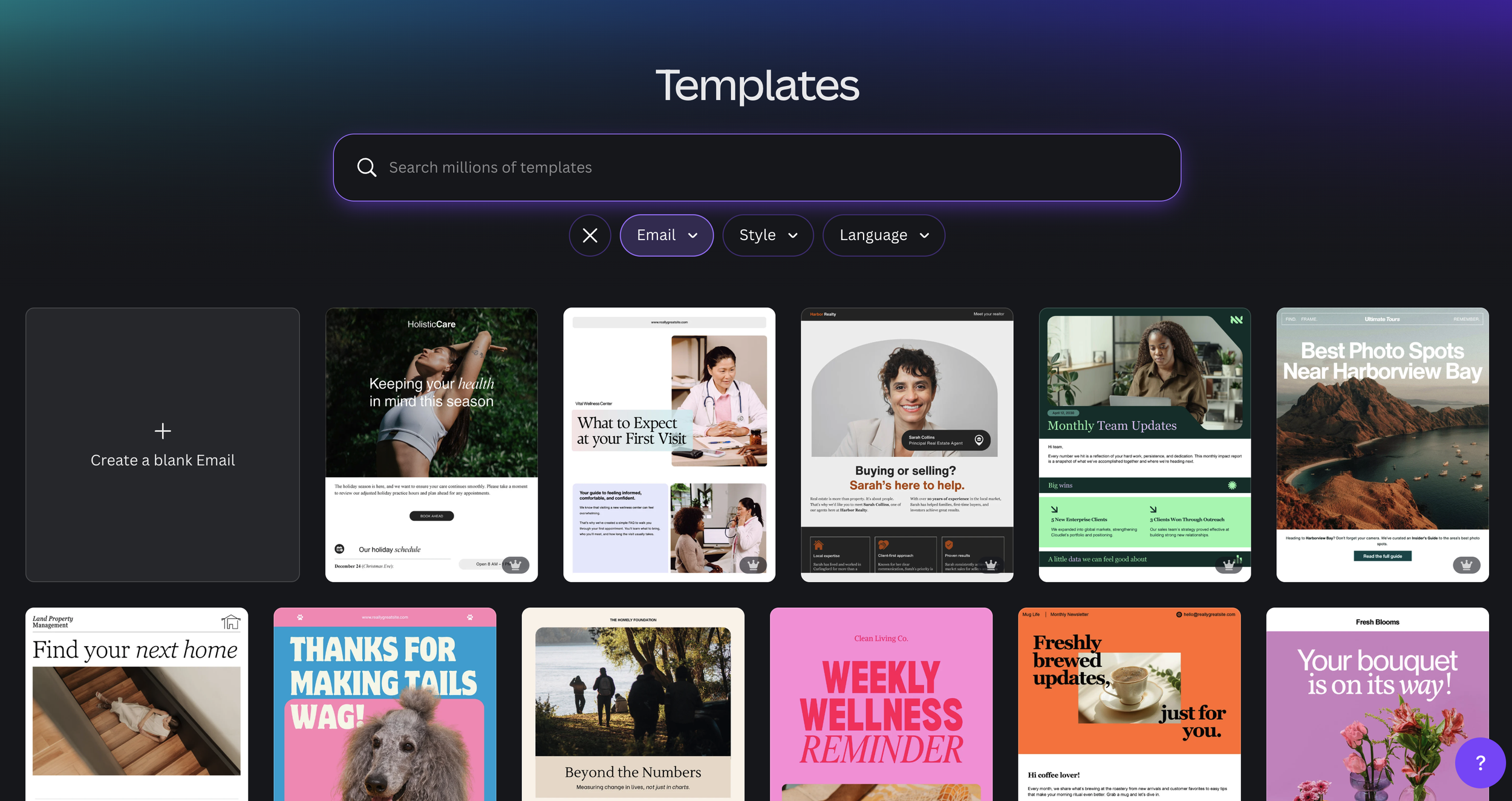
Open Canva and go to Templates. Then filter by the Email category.
You'll see a solid selection of professionally designed email templates. Scroll until something catches your eye, then click it and hit Customize this template.
One thing worth knowing: you have to use Canva's Email template type specifically. Not a newsletter template. Not a general graphic. It has to be categorized as an Email design for the Flodesk integration to work.
Step 2: Customize Your Design
This is where you make it yours.
Some email templates have a header section that appears to be flat, but it’s not! Double-click on it to open the secondary editor, and you'll be able to swap out the text, change fonts, and update colors from there.
Swap in your brand fonts. Canva has a section in the font library labeled Email Safe Fonts. Use one of those. These fonts display consistently across all email clients, so your design won't show up broken in someone's inbox because Gmail decided your custom font didn't exist.
Update your colors. Match your brand palette so everything is consistent with your branding.
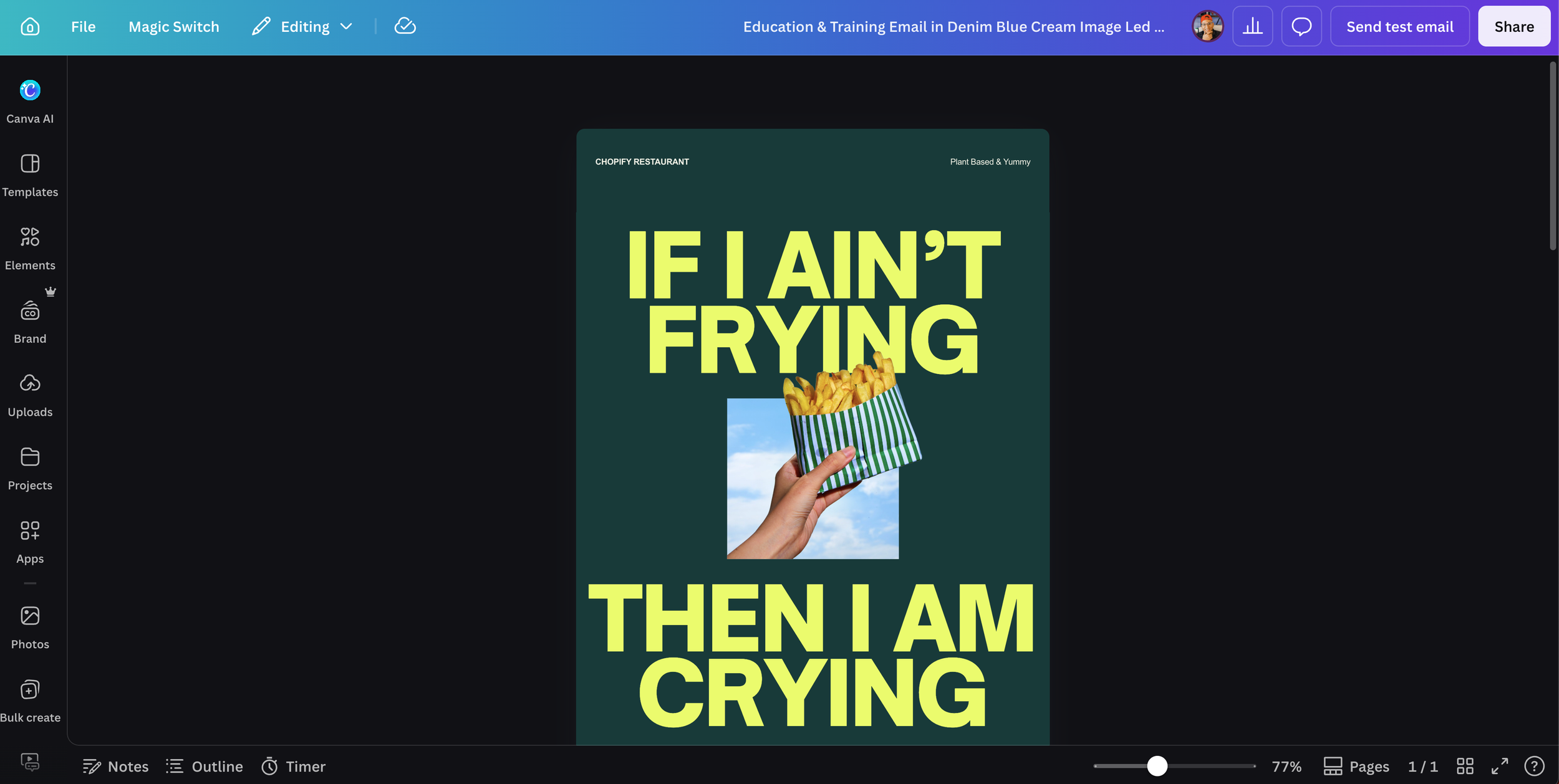
Swap in your images. One of the great things about designing Flodesk emails in Canva is that you have access to Canva’s photo editing tools like Magic Grab and Magic Layers. Head to the element library, find your image, and drop it in. If you want the image to overlap the text for a layered effect, use Canva's Magic Grab tool. Click on your image, go to Photo Editing, select Magic Grab, and hit Foreground. It separates the layers so you can drag the subject slightly over the text without losing your background. Save it and it updates right in your email design.
Add your links. Any hyperlinks you add in Canva will transfer over into Flodesk when you import the design. Add them now so they're ready to go. Flodesk will also track clicks on those links automatically.
Before you export, do these two things:
First, remove Canva's mailing address from the footer. Flodesk automatically adds your compliant sending address to every email. If you leave Canva's address in the design, both will show up in the final email.
Second, update the unsubscribe and preference links. Click on the compliance links in your Canva footer and map them to the correct Flodesk variables: Unsubscribe, Manage Preferences, and View in Browser if you're using it.
Step 3: Share to Flodesk
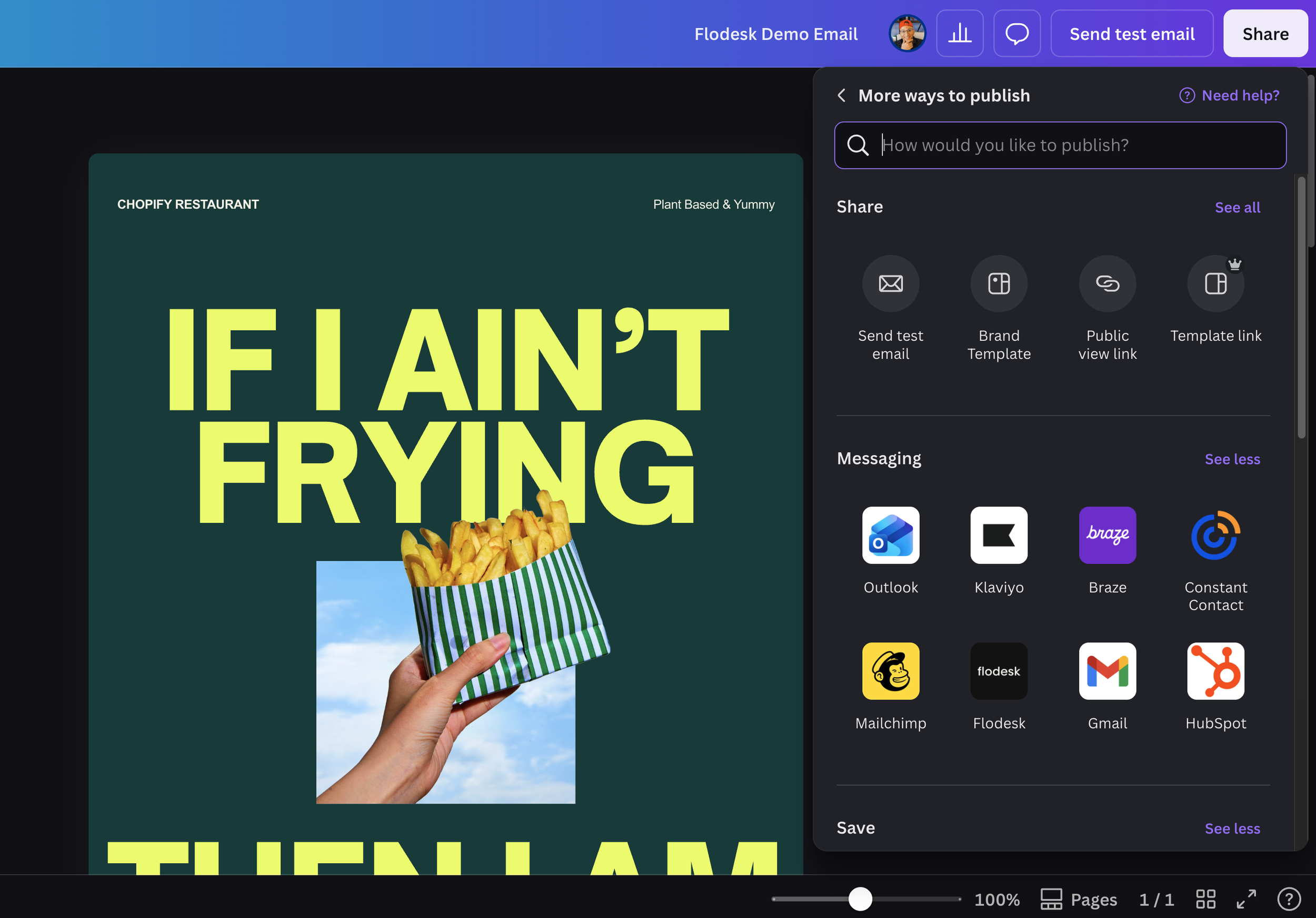
Once your design is looking right, go to the top right corner and click Share.
Select See All, then find and click Flodesk.
Before you connect, Canva gives you a nice preview of your email on both desktop and mobile. Take a second to check it. If something looks off on mobile, better to fix it now.
Then connect your Flodesk account. If you already have one, sign in. If not, you can create one and try it free right from this screen.
Choose New email or select an existing campaign. Click Share to Flodesk, hit Check it out, and Flodesk opens with your design already inside the editor.
Step 4: Review and Edit Inside Flodesk
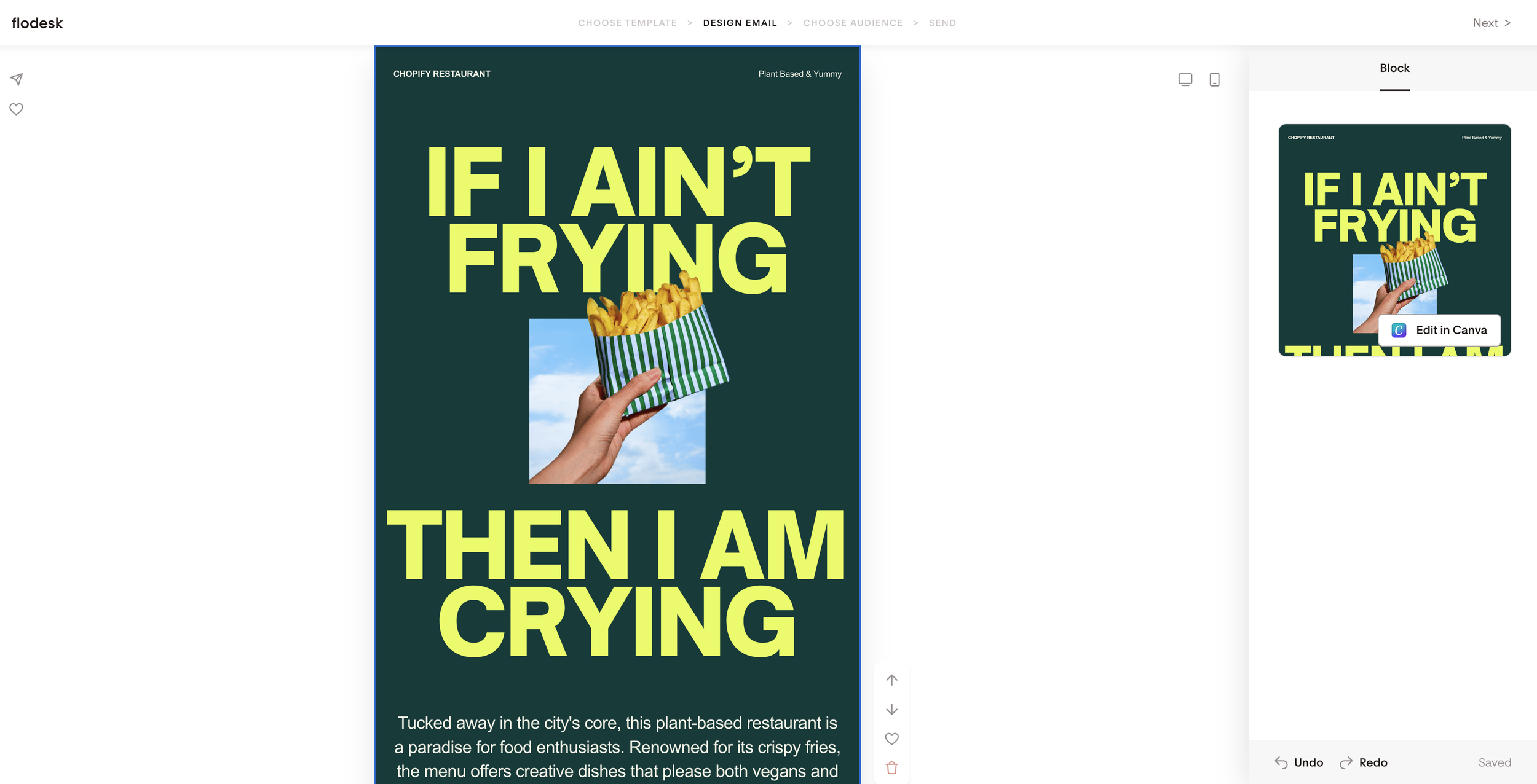
Flodesk brings your design in as one block. You can click on it to see your options. If you need to make any tweaks, look for the Edit in Canva button on the right side. That takes you straight back into the Canva editor.
Make your changes, then go back through Share > Flodesk, select the right email, and click Share to Flodesk again. The old block gets replaced with your updated version instantly.
Step 5: Add Any Final Touches in Flodesk
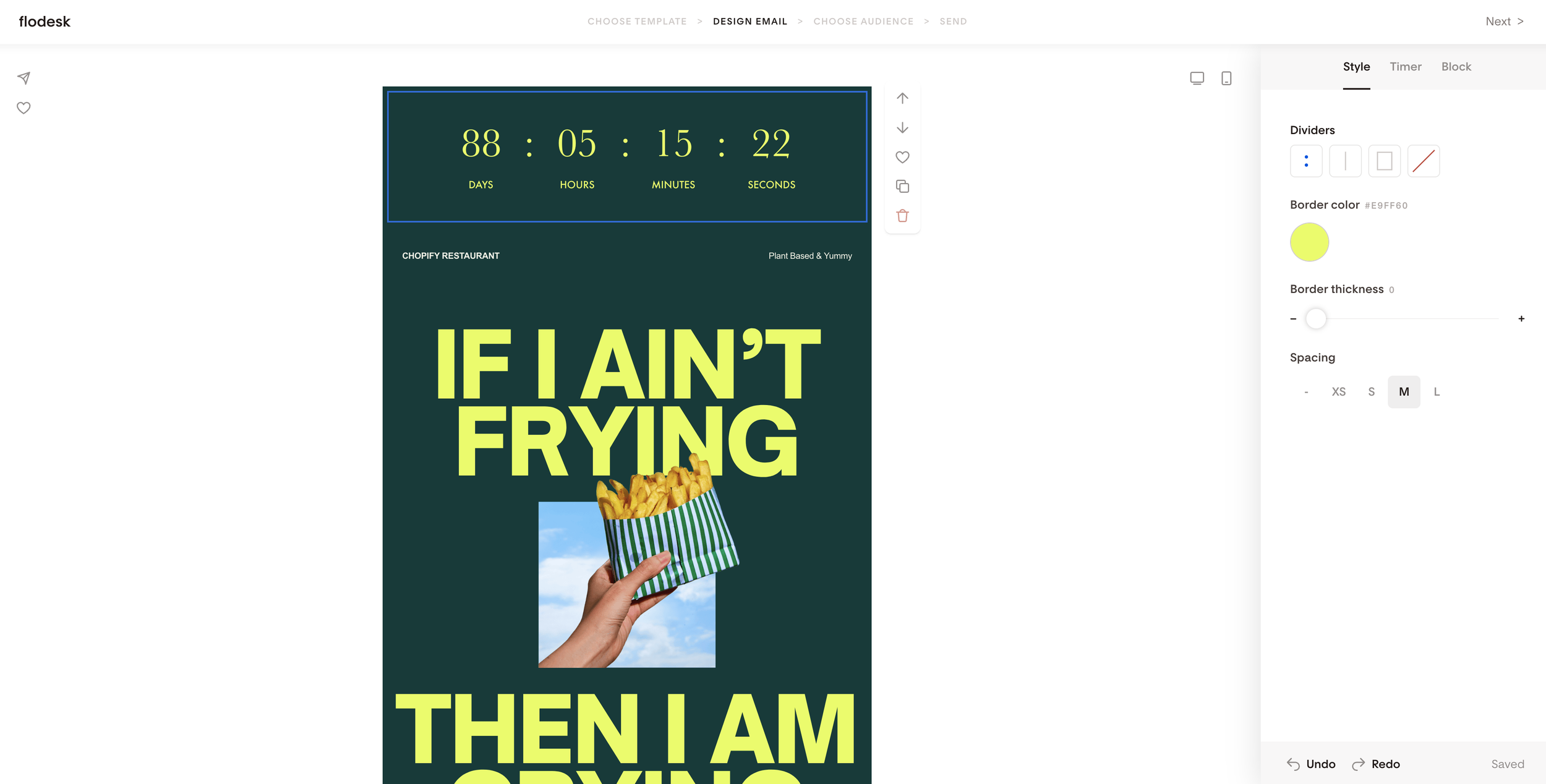
Flodesk has its own elements you can add around your Canva design. Want to drop in a countdown timer? A poll? Go for it. Use the eyedropper tool to pull colors from your design so everything stays cohesive.
When everything looks good, click Next.
Add your subject line, your preview text, then click Continue. Choose your segment (who's getting this email), set your send time, and send yourself a test email first.
Pro Tips Before You Hit Send
Use email-safe fonts. Canva labels them right in the font library. Stick to those and your email will look the way you designed it in every inbox.
Don't skip the mobile preview. More than half of emails get opened on a phone. Check the mobile view before you share to Flodesk.
Handle your footer in Canva before you export. Two things: remove Canva's mailing address, and map your unsubscribe and preference links to Flodesk's variables. Do both before you hit Share. This is the step most people skip and then wonder why their email has two footers or a broken unsubscribe link.
This works for campaigns, not automated workflows. If you're building an automated email sequence, use Flodesk's native editor for those and you can always add any graphics from Canva to help elevate the design.
Text still matters. Subject lines and preview text are important. No one will see that beautiful email if they don’t open it up :)
Why Flodesk and Canva Together Make Sense
As a Canva Verified Expert and Canva Creator, visual communication is at the forefront of what I do! Flodesk's native designs are genuinely beautiful. But now that Canva is in the mix, the ceiling on what your emails can look like just went way up.
And because the integration is two-way, you don't have to start over every time you want to make a change. You design it, share it, tweak it, sync it.
If you've been putting off email marketing because the setup felt overwhelming, this is an easy entry point to get you started.
FAQ
Do I need Canva Pro to use the Flodesk integration?
Nope. The integration itself is free and works with a free Canva account. That said, some of the best features you'll want for email design (like Background Remover, Style Match, Magic Grab, etc.) are Pro-only. If you're already on Canva Free, you can still connect and use it. You'll just have a smaller toolbox.
Do I need a paid Flodesk account?
Flodesk offers a 14-day free trial with no credit card required, so you can get started and send your first emails without paying anything upfront. After the trial, you'll need a paid plan to keep sending.
Will my custom Canva fonts carry over into Flodesk?
Custom fonts don't always render reliably across all email clients. Canva labels the safe ones right in the font library. Use those and your email will look the way you designed it in every inbox.
Can I keep editing my design after I send it to Flodesk?
Yes. Click the Canva block in your Flodesk editor, hit Edit in Canva in the right panel, make your changes, and share it back to Flodesk. The old block gets replaced with your updated version. You never have to re-upload anything.
Can I schedule my campaign instead of sending it immediately?
Yes. Once your email is ready in Flodesk, you can send it immediately or schedule it for a later date and time.
Does this work for automated workflow emails?
Not right now. The Canva integration supports campaign emails only. If you're building an automated sequence in Flodesk, use their native editor for those.
What if I don't have an email list yet?
Today is the perfect day to start! Flodesk has built-in opt-in forms you can embed on your site or link from your Instagram bio. You can have a list-building form live within minutes of signing up. The list grows while you sleep. The sooner you start, the better.
Ready to Try Flodesk?
You can start with a free trial and get 25% off your first year if you decide to make it official.